
Download Icecream Screen Recorder – Free, Secure Screen Capture & Video Recorder
Overview
Icecream Screen Recorder is a professional‑grade yet surprisingly intuitive screen‑capture tool that lets you record anything that happens on your desktop with just a few clicks. Whether you need a quick screenshot of a web page, a full‑screen video tutorial, or a high‑quality capture of streaming content from YouTube, Vimeo, or Dailymotion, Icecream delivers a reliable, free solution that works on both Windows and macOS platforms. The software’s clean interface eliminates the clutter found in many competing tools, allowing users to focus on what matters most—capturing clear, crisp visuals without sacrificing performance.
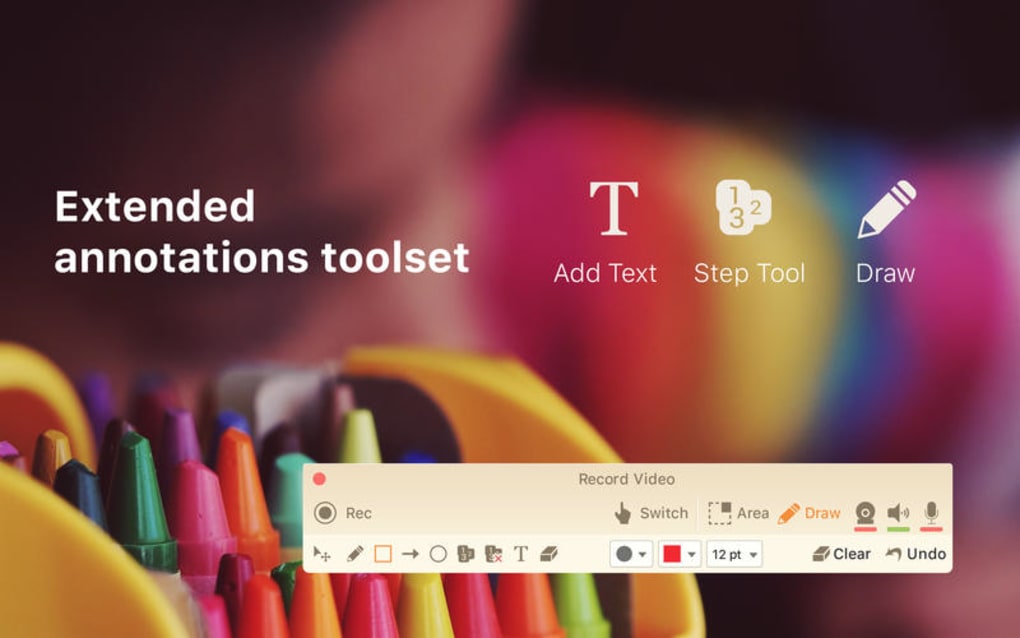
In addition to basic capture functions, Icecream offers built‑in annotation tools (arrows, circles, text boxes, and highlights) that make it easy to point out specific details directly on the screenshot or video. This makes the app a favorite among educators, marketers, and remote‑working professionals who need to create instructional content on the fly. Because the program is regularly updated, users enjoy the latest security patches, codec improvements, and feature enhancements without any hidden fees.
The free version already includes a generous set of capabilities, while a premium upgrade unlocks higher resolutions, longer recording times, and cloud‑storage integration for those who need a more robust workflow. Overall, Icecream Screen Recorder strikes a perfect balance between simplicity and power, positioning itself as a compelling alternative to the more cumbersome screen‑capture suites that dominate the market today.
Key Features & Installation Guide
Icecream Screen Recorder packs a surprisingly rich feature set for a free tool, and the installation process is as straightforward as its user interface. Below you’ll find a concise list of the most useful capabilities, followed by step‑by‑step instructions for getting the software up and running on your computer.
Feature List
- Full‑screen, window, and custom‑area video recording.
- High‑resolution screenshot capture with optional mouse cursor.
- Direct video download from popular streaming sites (YouTube, Vimeo, Dailymotion).
- On‑the‑fly annotation tools: arrows, shapes, text, and blur effects.
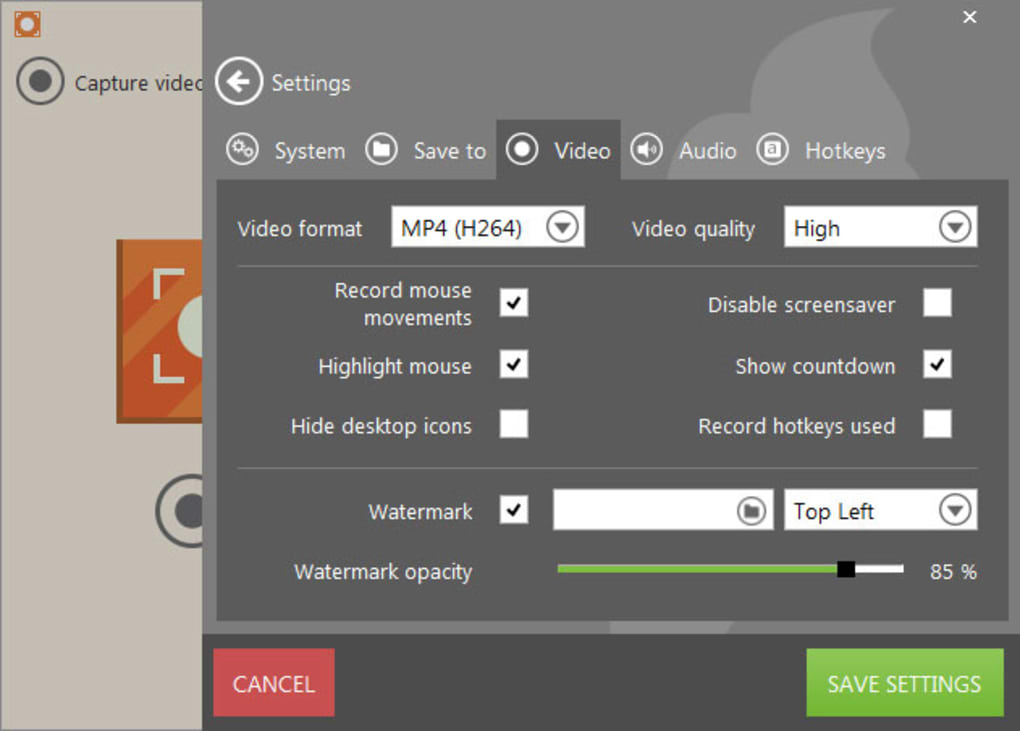
- Multiple output formats: MP4, AVI, WMV, GIF, PNG, JPG, BMP.
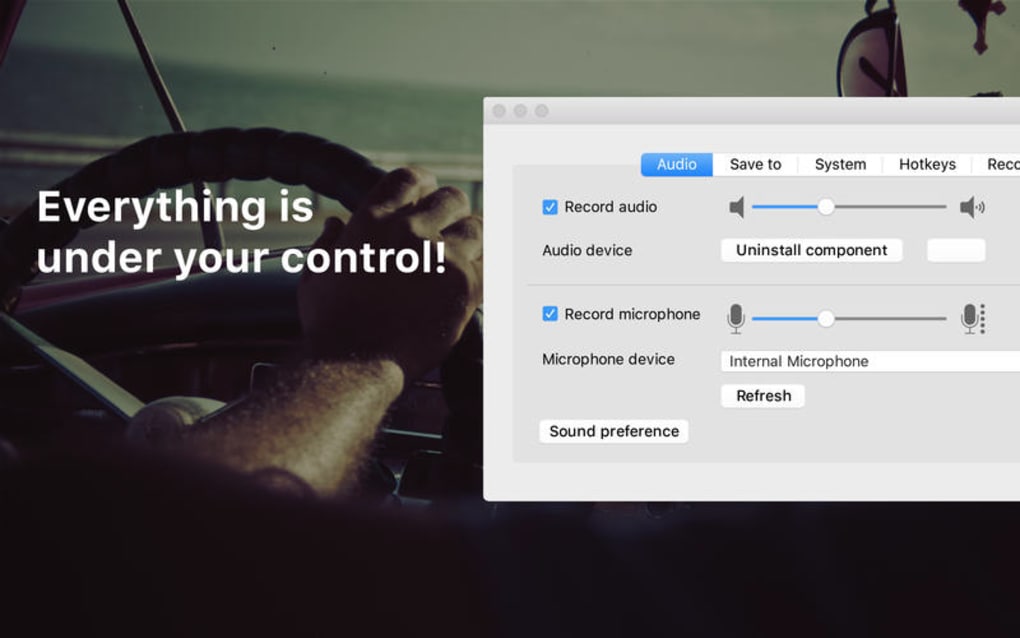
- Audio capture from microphone, system sound, or both simultaneously.
- Scheduled recordings for automated capture of webinars or live streams.
- Built‑in video editor for trimming, cropping, and adding watermarks.
- One‑click sharing to YouTube, Dropbox, Google Drive, and other cloud services.
- Free updates with security patches and new codec support.
Installation & First‑Run Setup
Getting Icecream Screen Recorder installed takes less than five minutes on a typical Windows 10/11 or macOS Catalina‑based system. Follow these steps for a smooth experience:
- Visit the official Icecream website and click the “Download for Windows” or “Download for Mac” button, depending on your OS.
- When the installer file (
.exefor Windows,.dmgfor macOS) finishes downloading, double‑click it to launch the setup wizard. - Accept the End‑User License Agreement, then choose the default installation folder or specify a custom path if you prefer.
- Click “Install” and wait for the progress bar to complete. The installer will also offer to create a desktop shortcut for quick access.
- After installation, launch Icecream Screen Recorder. The first launch may prompt you to allow microphone and screen‑recording permissions—grant these to enable full functionality.
- On Windows, you might need to enable “Game Bar” or “Screen Recording” permissions in Settings → Privacy → Screen recording. macOS users should navigate to System Preferences → Security & Privacy → Screen Recording and check the box next to Icecream.
- Once permissions are set, you’ll see the main control panel where you can select “Screenshot,” “Video Recorder,” or “Scheduled Capture.” Choose your preferred mode, adjust settings (resolution, audio source, file format), and click the red “Record” button to start.
The program automatically saves recordings to the default “Icecream Recordings” folder, though you can change the destination under Settings → Save Path. For users who need cloud integration, simply enable the “Auto‑upload” toggle and sign in to your preferred service.
Compatibility, System Requirements, and Pros & Cons
Icecream Screen Recorder is built to run smoothly on the most common desktop operating systems. The current version supports:
- Windows 10, Windows 11 (64‑bit)
- macOS Catalina (10.15) and later (including Monterey and Ventura)
While the application is not officially released for Android or iOS, the developers have announced a mobile companion app that syncs recordings via cloud storage, making cross‑device workflow possible for users who need to capture content on tablets or smartphones.
Minimum system requirements are modest: a dual‑core processor, 2 GB RAM, and at least 200 MB of free disk space for the application itself. For HD video recording, a graphics card with hardware acceleration (DirectX 11 or Metal) is recommended to avoid dropped frames.
Pros
- User‑friendly interface: No steep learning curve; beginners can start recording within seconds.
- Free core functionality: All essential capture and annotation tools are available without a license.
- Cross‑platform support: Works reliably on both Windows and macOS.
- Rich export options: Multiple video and image formats ensure compatibility with any workflow.
- Regular updates: Security patches and new features are rolled out monthly.
Cons
- Premium upgrade required for 4K recording and unlimited video length.
- No built‑in live‑streaming (you must record first, then upload).
- Limited mobile app functionality compared to desktop version.
- Occasional lag on older hardware when recording high‑frame‑rate videos.
Icecream Screen Recorder offers an excellent balance between ease of use and powerful features. The free tier is generous enough for most personal and educational needs, while the premium version adds professional‑grade capabilities without breaking the bank.
FAQ & Conclusion
Is Icecream Screen Recorder really free?
Yes, the basic version is completely free and includes screenshot capture, video recording, and annotation tools. A paid upgrade unlocks advanced features such as 4K recording, longer video durations, and cloud storage integration.
Can I record streaming videos from YouTube without breaking any terms of service?
Icecream Screen Recorder captures the video stream as it plays on your screen, which is generally permissible for personal, non‑commercial use. However, you should always respect the content creator’s licensing terms and avoid redistributing copyrighted material without permission.
What audio sources can I record simultaneously?
The software lets you capture system sound, microphone input, or a mix of both. You can toggle each source on or off in the audio settings before you start recording.
Does Icecream Screen Recorder support scheduled recordings?
Yes, the “Scheduled Capture” feature allows you to set a start and end time for automatic recordings—perfect for capturing webinars, live streams, or timed presentations.
How secure are my recorded files?
All recordings are saved locally on your hard drive unless you choose to upload them to a cloud service. The software does not transmit data without your explicit permission, and regular updates ensure that any security vulnerabilities are promptly patched.
In summary, Icecream Screen Recorder stands out as a free, secure, and feature‑rich solution for anyone who needs to capture screenshots or video on Windows or macOS. Its intuitive design, robust annotation toolkit, and seamless integration with popular cloud services make it an ideal choice for educators, marketers, and remote‑work professionals alike. If you’re looking for a reliable screen‑recording app that won’t drain your budget, click the download button below, install the program, and start creating high‑quality content today.







